A Community discussion forum for Halo Custom Edition, Halo 2 Vista, Portal and Halo Machinima
|
 Home
Home Search
 Register
 Login
Login Member List
 Recent Posts
| Viewing User Profile for: Master Jake | |||||||||||||||||||
| About | Contact | ||||||||||||||||||
|
Send Private Message |
||||||||||||||||||
| Post Statistics | |||||||||||||||||||
|
Master Jake has contributed to 35 posts out of 465278 total posts
(.01%) in 4,870 days (.01 posts per day).
20 Most recent posts:
Halo CE Technical / Map Design »
Multiplayer destroyeble vehicles May 31, 2010 11:24 PM
(Total replies: 2)
I think the single player vehicles are still destroyable in multiplayer. At least they were when I use to PMI like the single player ghost and wraith into multiplayer Halo PC maps. As far as making other vehicles destroyable though (like warthog or scorpion), I don't know.
Halo CE Technical / Map Design »
Sapien Stops Placing Netgame Equipment May 20, 2010 05:50 PM
(Total replies: 0)
So when placing netgame equipment, I right-click to place the marker, go into properties and change the item collection for it. In the hierarchy view it generally says "type weapon" e.g. "all games shotgun." After I get about 3 different weapons down (e.g. shotgun, sniper, pistol) I can't get anymore. When I select the item collection and press open the item collection box just stays blank in sapien. I seem to have a lot of weird problems out of sapien. Example of a working one:  Attempting to add another:  Fail: 
Halo CE Technical / Map Design »
Texture Transparency May 20, 2010 02:19 PM
(Total replies: 4)
Wow.... I forgot to do that. Thanks :D Edit2: Nevermind, I figured out what I was doing. Edited by Master Jake on May 20, 2010 at 03:18 PM
Halo CE Technical / Map Design »
Texture Transparency May 20, 2010 02:11 PM
(Total replies: 4)
I'm positive I have an alpha channel. When I re-open the image in photoshop the alpha channel is still in the channels. However, in 3DS Max, Sapien, and in game, the black area is still shown. Is there some sort of special setting I need to turn on in the 3DS Max material for it to enable the alpha?
Halo CE Technical / Map Design »
Texture Transparency May 20, 2010 01:53 PM
(Total replies: 4)
How do you make part of a texture appear transparent in game? For example, I have this planet texture. I don't want to the black area around the planet to appear in the map, just the planet.
Halo CE Technical / Map Design »
Blitzkrieg Plugin Failed To Initialize - 3DS Max 8 May 19, 2010 01:45 AM
(Total replies: 1)
EDIT: I've fixed this error. I'll post the fix here for future reference to anyone else who was having this problem. It turns out that the Blitzkrieg plugin and DLL's that came with the HEK don't work on 3DS Max 6, 7, and 8. For those 3 version, you need the max6 version of Blitzkrieg. This is the link I downloaded the DLL's and new Blitz version from. Sorry if the link is broken, but it worked at the time I used it. http://www.filefront.com/3819659/max6.zip# Just put the 4 DLL's either into Windows\system32 folder or into your 3DSMax8 installation root folder. Put the Blitzkrieg.dle into your 3DSMax8\plugins folder. END OF EDIT So, I reverted back to 3DS Max 8 so I could use the Blitzkrieg exporter. I'm sure there's a quick way to fix this, but I get an error when loading 3DS Max 8. Loading DLLs I have the 4 *.dll files in my system32 directory and am using the blitzkrieg version that came with HEK. I have also restarted several times. Screenshot 1: Failure to Initialize Plugin 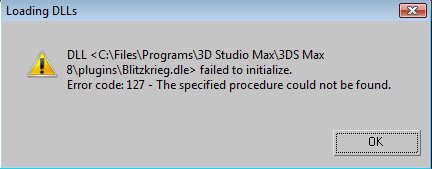 Screenshot 2: After Pressing "OK" To The Error Dialog (Proof, also, that it actually is 3DS Max 8) 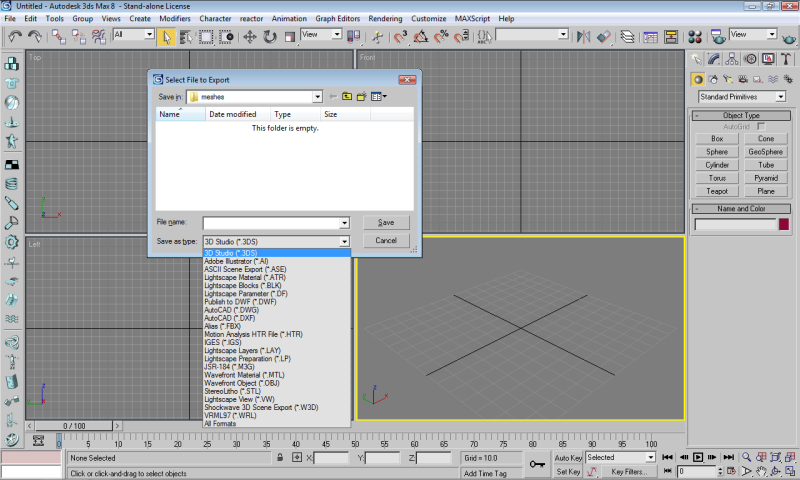 Edited by Master Jake on May 19, 2010 at 02:50 AM Edited by Master Jake on May 19, 2010 at 02:51 AM
Halo CE General Discussion »
AllDev Not Working May 2, 2010 12:26 AM
(Total replies: 5)
Wow..... an updated one. Dude, seriously thanks a lot. That one works fine! Edited by Master Jake on May 2, 2010 at 12:26 AM
Halo CE General Discussion »
AllDev Not Working May 2, 2010 12:15 AM
(Total replies: 5)
Odd... I guess it could be a Vista issue. Though it ran on Vista fine in the past when I had run as administrator on (which I still have it on). I also tried compatibility mode with windows xp service pack 2.
Halo CE General Discussion »
AllDev Not Working May 1, 2010 11:58 PM
(Total replies: 5)
Does AllDev only work if HaloCE is installed to the default directory? (C:\Program Files\Microsoft Games\Halo Custom Edition\haloce.exe). When I run it, get in game and press the "on" button it turns green like its working. The only problem is... the console isn't enabled. It used to work for me. The last time I tried was several months ago and back then I had it installed to the default directory so that is the only plausible explanation I can come up with. I'd make my own version of the program but I don't what the program actually does to the running haloce.exe process.
Halo CE Technical / Map Design »
360 Degree Skies Apr 27, 2010 07:51 PM
(Total replies: 8)
Oh, thanks. I'll look for some full skies. And yes, half the screen shows up as the sky and the other half is just ugly gray on the default ones.
Halo CE Technical / Map Design »
360 Degree Skies Apr 27, 2010 07:13 PM
(Total replies: 8)
How do you make 360 degree skies? By that, I mean skies that go all around the map like in Area 53. I tried having all the surfaces in my skybox have the +sky material, but that didn't work (the sky only assigned to the top and side faces. I also tried creating a star texture and putting that as the ground with the +sky on the sides and top. That just looked like a floating star plane.
Halo CE Technical / Map Design »
Custom Scenery Tag - Bounding Radius & Render Bounding Radius Apr 26, 2010 02:37 PM
(Total replies: 2)
Sounds good to me. It appears to work no matter what value I put in, as long as its quite a bit above 0. Should I set the render bounding radius to the same as the regular bounding radius?
Halo CE Technical / Map Design »
Ai command Apr 26, 2010 01:51 PM
(Total replies: 3)
Not sure if this differs between multiplayer or single player maps. In sapien (in the hierarchy view) go to Mission->AI->command lists and create a new instance. Expand the newly created command list and then click commands and create a new instance there too. Click that command and in the properties window you will see something that says "atom type." Use that box to select commands. The ones you are looking for would be: "go to" and "teleport" You may have to click points and create a point so that you can tell the AI to go to that point. Assign the command list to whichever AI you want in the AI properties.
Halo CE Technical / Map Design »
Custom Scenery Tag - Bounding Radius & Render Bounding Radius Apr 26, 2010 01:46 PM
(Total replies: 2)
Hi. So I'm making some custom scenery. The tutorial I was watching for creating the .scenery tag was very vague about the bounding radius and render bounding radius in the .scenery tag. If I leave these properties at 0, you can walk through the scenery objects in game (basically the collision doesn't work). The guy in the tutorial sets the bounding radius at 10, and the render bounding radius at 7. I tried these values and they seem to work out. Why these values? Is it always these values, or does it depend on the size of the scenery, or what? Thanks! Edited by Master Jake on Apr 26, 2010 at 01:47 PM
Halo CE Technical / Map Design »
Custom Vehicles Not Showing Up In Game Apr 22, 2010 12:03 AM
(Total replies: 2)
Oh, yeah. I completely forgot about that part. Thanks, man.
Halo CE Technical / Map Design »
Custom Vehicles Not Showing Up In Game Apr 21, 2010 09:45 PM
(Total replies: 2)
So I downloaded the Mongoose vehicle tags, imported the model into sapien, and then fixed all of the missing tags. The vehicle shows up in sapien when I place it, but in game its not there. Am I missing something? This also happened with the Stingray vehicle.
Halo CE Technical / Map Design »
For the love of god help me with this light!! Apr 21, 2010 09:43 PM
(Total replies: 8)
You select it, go into the Tool window and select a color and then just clicking and dragging like painting. The only problem you may have is being unable to save the lightmap after you're done. It seems a lot of people have that problem with sapien.
Halo CE Technical / Map Design »
Sapien Flipping Map Inside Out Apr 20, 2010 10:56 PM
(Total replies: 9)
Alright, I'll look into getting an older version. Thanks again everyone.
Halo CE Technical / Map Design »
Err: tags\ui\editor\markers\normal\normal.gbxmodel Apr 20, 2010 10:55 PM
(Total replies: 4)
Thanks :) The download link for the working normal.gbxmodel was broken on that thread, but I played around and somehow got it working. I opened normal.gbxmodel with Guerilla then re-saved it over itself and then sapien worked for that session. After I close sapien, however, it starts crashing again on re-load. I just have to repeat the Guerilla process anytime I need to open sapien.
Halo CE Technical / Map Design »
Err: tags\ui\editor\markers\normal\normal.gbxmodel Apr 20, 2010 09:59 PM
(Total replies: 4)
04.20.10 20:52:42 sapien pc 01.00.00.0609 ---------------------------------------------- Does anyone have or know how to get a working version of this tag: tags\ui\editor\markers\normal\normal.gbxmodel I opened HEK+ and extracted the entire ui folder from my ui.map file but the "editor" folder wasn't included. |
|||||||||||||||||||