A Community discussion forum for Halo Custom Edition, Halo 2 Vista, Portal and Halo Machinima
|
 Home
Home Search
 Register
 Login
Login Member List
 Recent Posts
| »Forums Index »Halo Custom Edition (Bungie/Gearbox) »Halo CE Technical / Map Design »Multipurpose maps? | 
|
| Author | Topic: Multipurpose maps? (9 messages, Page 1 of 1) | ||||
| Moderators: Dennis | |||||
 XlzQwerty1 Joined: Aug 6, 2009 
|
Posted: Jan 17, 2011 04:39 PM
Msg. 1 of 9
Could someone give me a thorough explanation about multipurpose bitmaps? I cannot seem to get the effect I want when I make my own ugly multis :(.
Thanks! |
||||


|
|||||
|
XlzQwerty1 Joined: Aug 6, 2009
|
Posted: Jan 19, 2011 08:01 PM
Msg. 2 of 9
What about alpha channels? What do they do in a multipurpose?
|
||||
|
|
|||||
|
MoooseGuy Joined: Aug 10, 2008 
I Approve This Message. |
Posted: Jan 20, 2011 01:11 PM
Msg. 3 of 9
This thread will come in handy for our newcomer.
|
||||
|
|
|||||
|
MoooseGuy Joined: Aug 10, 2008
I Approve This Message. |
Posted: Jan 20, 2011 01:19 PM
Msg. 4 of 9
I'll be on in about an hour. Gotta go home and turn on my iPod Touch.
|
||||
|
|
|||||
|
Enzo03 - Screenshot Guru - Joined: Aug 3, 2007 
I'd rather go without than take what you'd bring. |
Posted: Jan 26, 2011 01:08 PM
Msg. 5 of 9
Yes, alpha channels help determine where the color changes, but I would like to elaborate:
Alpha modulates color change by how much white there is in a pixel of the texture. Areas where the alpha is white will have full color change, or at least as much as much as the blue/red channels allow. Black will have no color change. Grey will have color change in between white and black. Now what does the blue and red channels have to do with it? I really have no idea! For some reason though, having full red or full blue on your multipurpose doesn't make the diffuse texture look as good when colored. A good multipurpose will not have solid blue, red, or purple. As for green, if you want areas with full glow then you will need the full green in those areas, but to make it look like an area which glows, you should smooth the edges of the green. A cool thing you can do is take either a bump map or a displacement map and apply it to your multipurpose (NOT YOUR DIFFUSE), and ingame the model will sorta look bump-mapped. Here's an old example of mine that uses these tips: 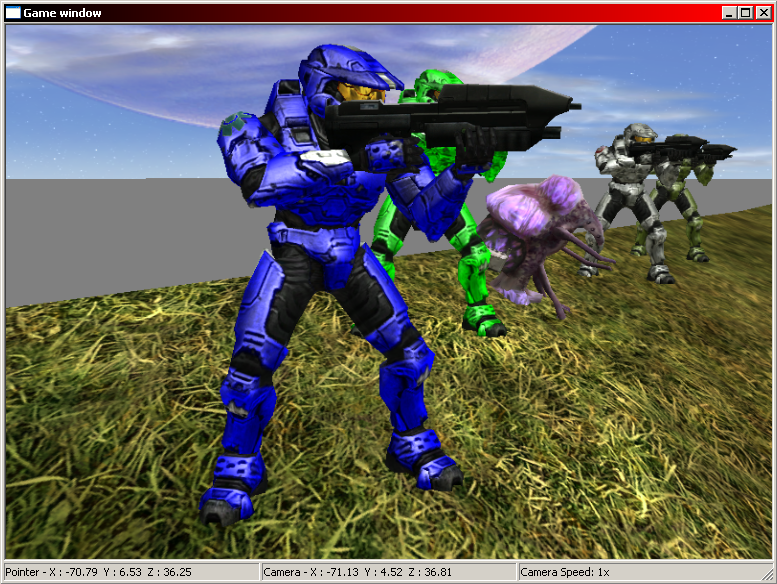 Here's the original tag: http://hce.halomaps.org/index.cfm?fid=3204 Custom cube maps help as well, and my shaders used some. Edited by Enzo03 on Jan 26, 2011 at 01:11 PM |
||||
|
|
|||||
|
XlzQwerty1 Joined: Aug 6, 2009
|
Posted: Jan 26, 2011 03:37 PM
Msg. 6 of 9
That is actually What I am doing. ImBrokeRU taught me that a year ago about putting 100% grayscaled normals onto multipurpose and about 20% opacity of the normals on the diffuse.
|
||||
|
|
|||||
|
XlzQwerty1 Joined: Aug 6, 2009
|
Posted: Jan 26, 2011 08:27 PM
Msg. 7 of 9
That takes up more space and will always be at a fixed depth :(
|
||||
|
|
|||||
|
SlappyThePirate Joined: Aug 24, 2009 
You are irritating, I'll release nothing |
Posted: Jan 26, 2011 08:43 PM
Msg. 8 of 9
This is perfect, I understand model shaders a lot more now. Thanks so much for the intel. Bookmarked!
|
||||
|
|
|||||
|
Jesse Joined: Jan 18, 2009 Discord: Holy Crust#4500 |
Posted: Jan 27, 2011 02:05 AM
Msg. 9 of 9
Quote: --- Original message by: XlzQwerty1 That is actually What I am doing. ImBrokeRU taught me that a year ago about putting 100% grayscaled normals onto multipurpose and about 20% opacity of the normals on the diffuse. Try copying the BLUE channel of a normal map and apply it as a new layer with the blending properties set to "Multiply". This gives you the slightly accented shadows that a normal map provides. |
||||
|
|
|||||

|
