A Community discussion forum for Halo Custom Edition, Halo 2 Vista, Portal and Halo Machinima
|
 Home
Home Search
 Register
 Login
Login Member List
 Recent Posts
| »Forums Index »Halo Custom Edition (Bungie/Gearbox) »Halo CE Technical / Map Design »*sigh* yet ANOTHER question, please help | 
|
| Author | Topic: *sigh* yet ANOTHER question, please help (9 messages, Page 1 of 1) | ||||
| Moderators: Dennis | |||||
 biglou117 Joined: Oct 30, 2008 
Stupidity is not a handicap! Park elsewhere! |
Posted: Mar 17, 2009 02:57 PM
Msg. 1 of 9
ok so i have now mastered adding vehicles to a map but now i have a weapon problem >:(
i got the c4 tags off hugeass and ripped them all correctly. then i decided to make a nuclear c4 so i changed the explosion thingy in gureilla. i added it to the weapon list in globals.globals and put the weapon in the map with sapien. i compiled it with tool ++. i enter the map and i can see the c4 but as i get close to it it disappears even though i didnt pick it up. so i go into guerilla and make an item collection thingy for my nuke c4. put the nuke c4 in the map again in sapien. compile the map. same problem. also when i add any custom weapon to my maps the ammo is at 0 and i cant re fill it or anything. if you can help fix this, CHEERS! |
||||


|
|||||
|
PVT Jenkins Joined: Feb 23, 2009 
Advance!!!!! |
Posted: Mar 17, 2009 03:05 PM
Msg. 2 of 9
becuase your supoosed to create an item collection in guerrila.
|
||||
|
|
|||||
|
Gamma927 Joined: Jun 12, 2008 
Steam: gamma927 |
Posted: Mar 17, 2009 03:07 PM
Msg. 3 of 9
You don't add weapons as .weapon tags. You add them as netgame equipment. I believe if you ripped hugeass, the c4.item_collection will appear in the item collections\single weapons folder. Here's how to add them, quoted directly from the official HEK tutorial:
Quote: --- Original message by: Gearbox Netgame Equipment Placement The objects that determine the placement of weapons and items (such as power ups) in a mulitplayer level are called Netgame Equipment. Netgame Equipment objects are attached to an "item collection". An item collection is a data tag which can include a single weapon or item or a group of weapons or items. Netgame Equipment objects can be customized per game mode. Therefore, weapons and items can be customized by weapon or item type per game mode. To see what single weapon and item, and weapon and item groups are available for placement, as well as what the .item_collection tag names are, refer to the tables located under the Weapons\Ammo\Items List section located under the General Reference sections. The following section contains tutorials and examples that will demonstrate the placement of the Netgame Equipment objects in a multiplayer level. Placement of Netgame Equipment objects in the tutorial level: Unlike previous objects placed in Sapien, the Netgame Equipment objects do not have a palette. The .item_collection data tags must be referenced for each item. It is common to create one of each type of desired weapon or item in the level and then use these items to quickly create and place more items of the particular type. This is similar to creating a palette but is a little more cumbersome. This is done as mentioned before, select the item in the right pane of the Hierarchy view and then Right Mouse Click. 1) Go to the Hierarchy view window. In the Hierarchy tree expand the "Game data" branch. Next, select the "Netgame Equipment" branch. A health pack (which is considered a power up) will be placed in each base hallway for every game mode. 2) In the Game Window, click the Right Mouse Button to create a Netgame Equipment object in the middle of the Blue Base hallway. 3) In the Properties palette, click on the "..." button in the item collection field. An Open dialog window will appear. 4) In the Open dialog window, go to the "item collections" tag directory under the main tag directory. Enter the "powerups" directory under the "item collections" directory. 5) Select the "powerup health pack.item_collection" tag. 6) Once this is selected, hit Open. NOTE: Netgame Equipment objects always appear as a marker. The marker will never appear as the select weapon or item that is referenced from the .item_collection. 7) This item collection tag should now appear in the item collection field under the item collection area in the Properties palette. 8) The health packs will be available for all game types. In the "type 0" field select the "all games" option by using the pull down menu. Once the health pack is placed in the Blue Base hallway, add a health pack to the hallway in the Red Base. The next item that will be placed is an invisibility power up or "Active Camouflage" power up. This power up will appear in all game modes except for Race game modes. 9) To place the invisibility power up follow the steps below. a) In the Game Window click the Right Mouse Button to put down a Netgame Equipment object on the side of the level opposite of the stream. b) In the Properties palette, click on the "..." button in the item collection field. An Open dialog window will appear. c) Select the "powerup invisibility pack.item_collection" tag in the Halo\tags\item collections\powerups" directory. d) Once this is selected, hit Open. 10) This item collection tag should now appear in the item collection field under the item collection area in the Properties palette. 11) The health packs will be available for all game types except for Race mode. In the "type 0" field select the "all except race_ctf" option by using the pull down menu. In the "type 1" field select the "ctf" option by using the pull down menu. 12) In the Game Window, click the Right Mouse Button to create a Netgame Equipment object behind the rock closest to the stream on the Blue Base side of the level. 13) In the Properties palette, click on the "..." button in the item collection field. An Open dialog window will appear. 14) In the Open dialog window, go to the "item collections" tag directory under the main tag directory. Enter the "single weapons" directory under the "item collections" directory. 15) Select the "pistol.item_collection" tag. 16) Once this is selected, hit Open. 17) This item collection tag should now appear in the item collection field under the item collection area in the Properties palette. 18) The pistol will be available for all game types. In the "type 0" field select the "all games" option by using the pull down menu. Once the pistol is placed on the Blue Base side, add a pistol to the Red Base side in the same approximate location. I didn't bother checking which part you need to add weapons, but read the entire thing. |
||||
|
|
|||||
|
biglou117 Joined: Oct 30, 2008
Stupidity is not a handicap! Park elsewhere! |
Posted: Mar 17, 2009 03:26 PM
Msg. 4 of 9
yeah the c4 appears but i cant pick it up :(
|
||||
|
|
|||||
|
Gamma927 Joined: Jun 12, 2008
Steam: gamma927 |
Posted: Mar 17, 2009 06:17 PM
Msg. 5 of 9
Did you add it into globals?
|
||||
|
|
|||||
|
Sgt Blaze Joined: Mar 14, 2009 
still actin' like Two-Bit from the Outsides.... |
Posted: Mar 17, 2009 06:48 PM
Msg. 6 of 9
Quote: --- Original message by: biglou117 yeah the c4 appears but i cant pick it up :( *Starts playing the jeopardy theme and thinks* Hum............................................................ This be a long to before i think of something that will help. WAIT ask a CMT member they could help. |
||||
|
|
|||||
|
biglou117 Joined: Oct 30, 2008
Stupidity is not a handicap! Park elsewhere! |
Posted: Mar 18, 2009 02:03 PM
Msg. 7 of 9
YEP
|
||||
|
|
|||||
|
Koo294 Joined: Nov 30, 2008 
How is she when she doesn't surf? |
Posted: Mar 18, 2009 02:18 PM
Msg. 8 of 9
its because of the weapon label
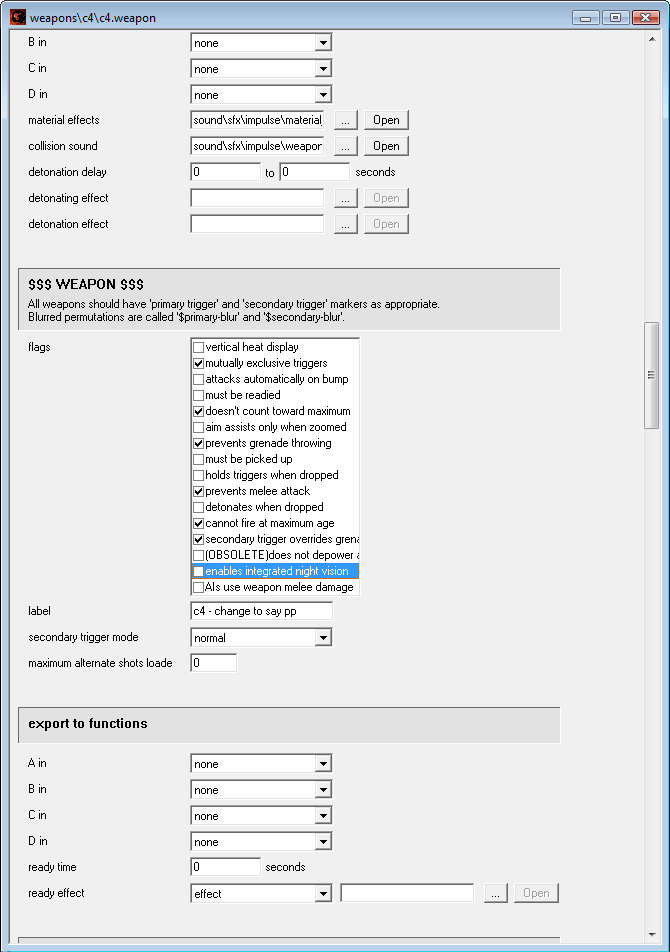 change to say pp Edited by Koo294 on Mar 18, 2009 at 02:19 PM |
||||
|
|
|||||
|
biglou117 Joined: Oct 30, 2008
Stupidity is not a handicap! Park elsewhere! |
Posted: Mar 18, 2009 03:22 PM
Msg. 9 of 9
dude i serouisly owe u my right leg! you're really helpful!!! :)
thanks |
||||
|
|
|||||

|
